Battery Breadboard
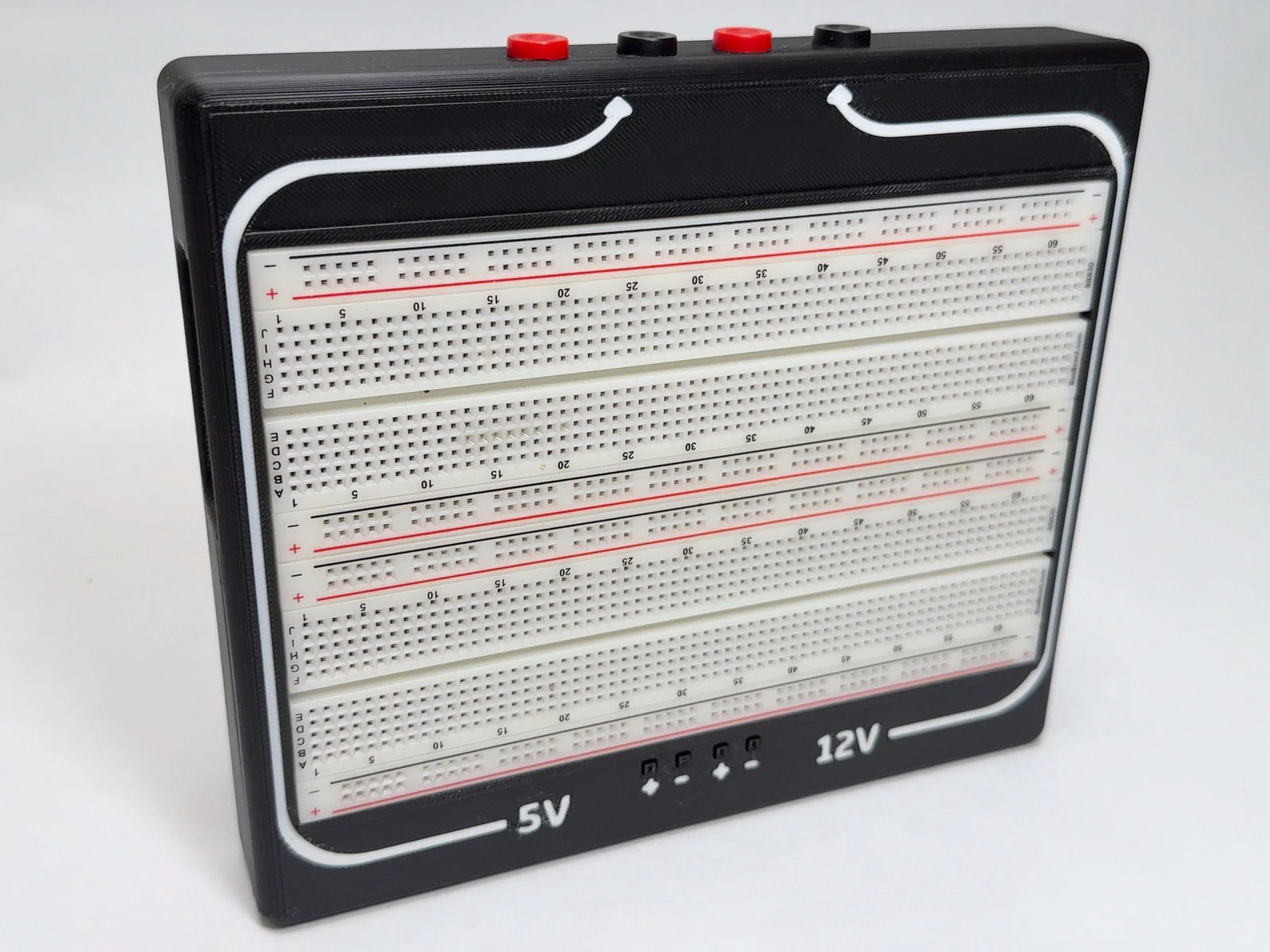
Overview
The Battery Breadboard started from wanting a convenient way to prototype projects without being tied to a bench power supply.
I had three design goals. First, the whole package should be as small as possible so it’s easy to carry around. Second, it should be easy for anyone to build, which means every component has to be easy to source. Third, the batteries inside should be removable, so they can still be used as regular portable batteries.


Parts Selection
The first step in the design was choosing every component. My main requirement was that all of them would be easy to source.


- Power banks: two small 10000mAh USB-C power banks.
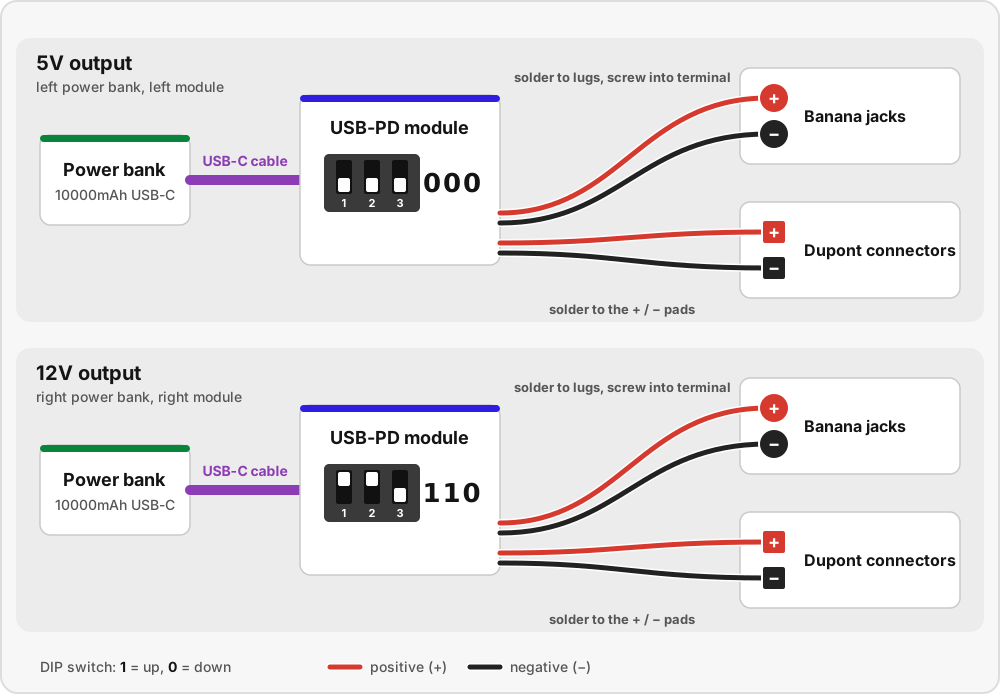
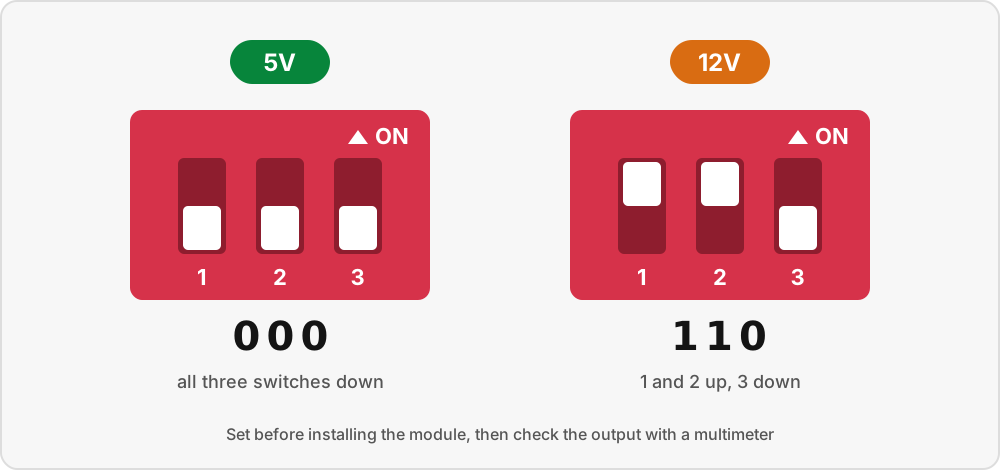
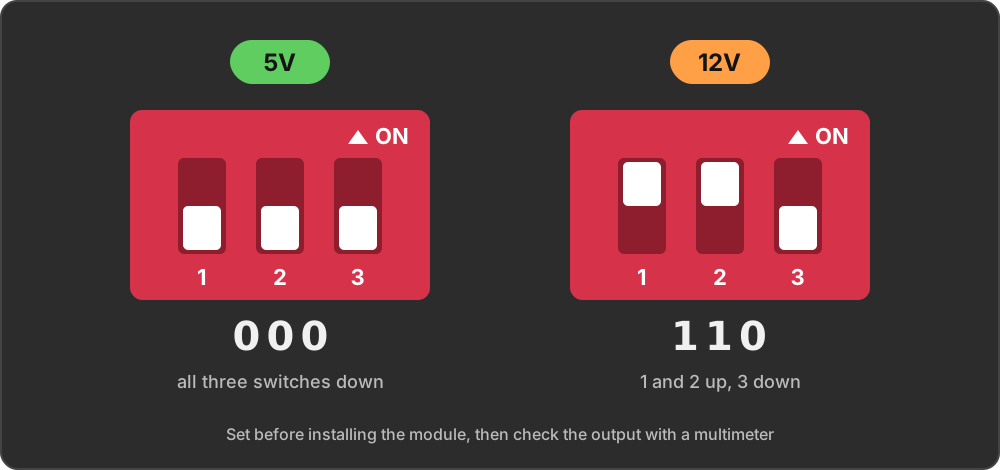
- USB-PD modules: one per power bank. A USB-PD trigger board asks the power bank for a fixed voltage, set with its DIP switches. One module is set to 5V and the other to 12V.
- USB-C cables: short 6" right-angle cables connect each power bank to its module without taking up much room.
- Outputs: each module powers two kinds of output. Dupont connectors on the top and 4mm banana jacks on the front wall.
- Breadboard: a large 1660-size breadboard gives plenty of room for quick prototyping.
Wiring Diagram
The wiring is simple. Each power bank connects to its USB-PD module with a USB-C cable. Each module then powers two outputs:
- Dupont connectors, soldered directly to the module’s + and − pads.
- Banana jacks, wired from the module’s screw terminal.
Mechanical Design
With the parts chosen, I imported or modeled each one, packed them as tightly together as I could, and then designed the enclosure around them. My hope was that with this strategy I could keep the overall size very small.
The enclosure is two 3D printed pieces. The base holds the two power banks side by side, with the PD module assembly in a channel between them and the banana jacks in the front wall. The lid carries the breadboard and allows the Dupont connectors to penetrate through itself to mount flush with the top surface.


Beyond keeping it small, I had two more goals for the enclosure: make it easy to assemble, and make the batteries easy to remove.
Removable Batteries
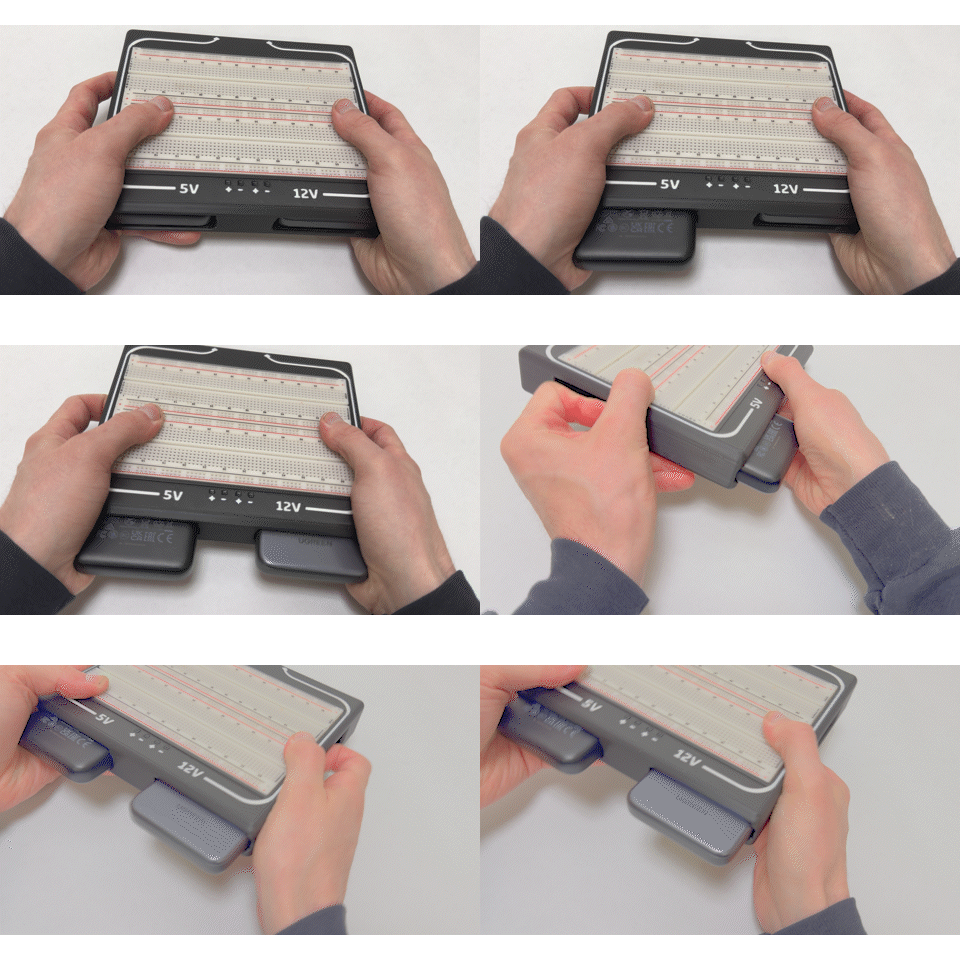
I wanted the batteries to come out easily for charging. Cutouts in the sides of the enclosure let you easily disconnect and push out the battery.
Getting the battery to slide smoothly, not rattle, and mate up with the USB-C connector was the most difficult aspect of the design. This took four or five iterations to get to a point I was happy with.


Specs
The two outputs are completely independent: each one has its own power bank and its own CH224K-based USB-PD module. The limits come from the power bank’s USB-C port. It offers 5V/3A, 9V/2.22A and 12V/1.67A, up to 20W.
| Spec | 5V output | 12V output |
|---|---|---|
| DIP switches | 000 | 110 |
| Max current | 3A | 1.67A |
| Max power | 15W | 20W |
| Battery | 10000mAh (37Wh) | 10000mAh (37Wh) |


Bill of Materials
Used in build is exactly how many of each part one Battery Breadboard needs. Buy is how many packs or items to order. Most parts come in packs, so you will have spares left over.
| Part | Product | Used in build | Buy | Price |
|---|---|---|---|---|
| Power bank | UGREEN 10000mAh PD power bank (20W over USB-C) | 2 | 2 | $24.99 each |
| Breadboard | BusBoard BB1660, 1660 tie points | 1 | 1 | $18.98 |
| USB-PD module | CH224K USB-C PD trigger board, 5-pack | 2 (one 5V, one 12V) | 1 pack | $7.99 |
| USB-C cable | SUNGUY 6" right-angle USB-C to USB-C, 2-pack | 2 | 1 pack | $6.89 |
| Dupont leads | ELEGOO 120pcs jumper wires (M-F, M-M, F-F) | 4 female leads (2 red, 2 black), cut to 70 mm | 1 pack | $6.98 |
| Banana jacks | 4mm panel-mount banana jacks, 10-pack | 4 (2 red, 2 black) | 1 pack | $7.99 |
| Wire | 20 AWG silicone wire, red and black | 4 pieces at 125 mm (2 red, 2 black) | 1 pack | $7.98 |
| Heat-set inserts | M3 x 6 x 4.2 mm heat-set inserts | 5 (2 in the base, 3 in the lid) | 1 pack | $6.99 |
| M3 bolts | M3 socket head bolt assortment | 2 x M3 x 8 mm, 3 x M3 x 25 mm | 1 set | $7.99 |
| Heat shrink | Heat shrink tubing assortment | 4 pieces, one over each banana jack solder joint | 1 set | $13.99 |
| Wire ferrules | Wire ferrule kit with crimper | 4, one on the free end of each banana jack wire | 1 kit | $14.99 |
| PLA filament | Black and white PLA | black for the parts, white for the labels and power indicator | 1 set | $26.08 |
| Total | $176.83 |
Checklist by step:
- Printed parts: 1 base, 1 lid, 1 PD module mount, 2 cable retainers
- Prepare the printed parts: 5 heat-set inserts
- PD module assembly: 2 USB-PD modules, 4 Dupont leads (70 mm)
- Banana jacks: 4 banana jacks, 4 wires (125 mm), 4 pieces of heat shrink, 4 ferrules
- Install in the base: 2 x M3 x 8 mm bolts, 2 USB-C cables
- Close it up: 2 power banks, 1 breadboard, 3 x M3 x 25 mm bolts
Tools
To build the Battery Breadboard you need a 3D printer, a soldering iron with a heat-set insert tip, a hot air station for the heat shrink, a wire stripper, a ferrule crimper, M3 Allen keys and a multimeter to test the outputs.
Here are my recommendations for each of the tools needed to complete the build.
| Tool | Product | Used for | Price |
|---|---|---|---|
| 3D Printer | Creality K2 | printing the base, lid, PD module mount and cable retainers | $521.00 |
| Soldering Iron | ALIENTEK T90B adjustable-temperature soldering iron | soldering the Dupont leads and banana jacks | $99.00 |
| Heat Set Insert Tool | FEITA heat set insert tips | pressing in the heat-set inserts | $26.99 |
| Hot Air Station | Hot air rework station | shrinking the heat shrink | $156.99 |
| Wire Stripper | Klein Tools 11046 wire stripper | stripping the wire ends | $16.24 |
| Ferrule Crimper | Comes with the wire ferrule kit in the Bill of Materials | crimping ferrules onto the banana jack wires | $14.99 (same kit) |
| Allen Keys | Wera 950 SPKL hex key set | M3 bolts | $43.96 |
| Multimeter | DM40C multimeter | testing the 5V and 12V outputs | $150.00 |
Prices are from Amazon as of [10/19/26]. Prices change often, so check the links for current pricing.
Downloads and Print Settings
Download the print files from Printables: Battery Breadboard on Printables


| Part | Qty | Supports | Notes |
|---|---|---|---|
| Base (main body) | 1 | NONE | Dual color recommended for transparent power indicator |
| Lid (top plate) | 1 | NONE | Dual color recommended for labels |
| PD module mount | 1 | NONE | Single color |
| Cable retainer | 2 | NONE | Single color |
As for filament, I used black and white PLA for all of the parts. Any material besides flexibles should work fine.
Build Guide
- Print all of the parts in Downloads and Print Settings . (The base and lid use two-color printing for the labels and for a transparent section in the base that shows when power is on.)
- Make sure you have all of the required parts and tools in Bill of Materials and the Tools .
Difficulty
My goal with the design was to make the build as simple as possible. The most difficult part is soldering the banana jacks and Dupont cables, so if you have the skills to do this, you can complete the build.
3D Printing


1. Prepare the Printed Parts
The base and the lid both use M3 heat-set inserts. Every insert goes in the same way:
- Fit the heat-set insert tip to your soldering iron and heat it to about 250°C.
- Set the insert in its hole in the printed part.
- Rest the iron on top of the insert and press down gently. Stop pressing when the insert sits flush with the surface.
Step 1: Heat-Set Inserts in the Base
Install two inserts in the base, where the PD module mount bolts down.


Step 2: Heat-Set Inserts in the Lid
Install three inserts in the underside of the lid, where the base bolts on.


When they’re done, every insert should sit flush with the surface:


2. Build the PD Module Assembly
Step 3: Set the Voltage on Each Module
Set the DIP switches on each module before installing it:
Step 4: Solder the Dupont Wires
Take four female Dupont leads, two red and two black. Cut each one to 70 mm, measured from the end of the plastic housing, and strip the cut end.


Step 5: Clip the Modules into the Mount


Clip the 5V module into the left side of the mount and the 12V module into the right, so they line up with the 5V and 12V labels on the lid.
Step 6: Seat the Dupont Connectors


With the Dupont wires seated, route the wires through the guides on the bottom so they line up with the banana jack solder points on the bottom of each PD module. Solder red to the + side and black to the - side.
The finished PD module assembly:


3. Wire the Banana Jacks
Step 7: Soldering Wire to the Banana Jacks
Cut four of the 20 AWG wires to 125 mm, two red and two black, and strip both ends.
Solder a red wire to each red jack’s lug and a black wire to each black jack’s lug. Slide heat shrink over each joint and shrink it, then crimp a ferrule onto the free end of each wire so it clamps cleanly in the screw terminal.


Step 8: Mount the Banana Jacks


Push each jack through its hole in the front wall and tighten its nut from the inside, in the order red, black, red, black.


4. Install Everything in the Base
Step 9: Place the PD Module Assembly


Step 10: Bolt the Assembly Down


Step 11: Connect the Banana Jacks to the Screw Terminals
Check polarity: the 5V banana jacks go to the 5V module and the 12V jacks to the 12V module.


Step 12: Plug In the USB-C Cables


Plug each cable into its PD module and route it to the end of its battery bay.
Step 13: Fit the Cable Retainers


Once the lid is installed, the USB cable retainers will be sandwiched between the cable and the lid, holding the cable in place.
5. Test Before Closing
Step 14: Insert the Power Banks


Step 15: Measure Every Output
Before closing the lid, measure the voltage and polarity at each pair of banana jacks and each pair of Dupont connectors with a multimeter. The left pair should read 5V and the right pair 12V.
If 0V is measured, make sure the connections are solid. If the wrong voltage is measured, make sure the wiring is not mixed up and the DIP switches are set correctly.


6. Close It Up
Step 16: Fit the Breadboard into the Lid
One side of the breadboard fits into the lid from the top while the other side fits in from the bottom.


Step 17: Put the Lid On


Step 18: Bolt the Lid On


Turn the unit over and drive the three M3 x 25 mm bolts up through the base into the lid’s heat-set inserts.


Finished


7. Example Project On Finished Breadboard
Using the dupont connectors I am powering this example project from the breadboards 5v supply.


Turning the Outputs On and Off
Each output can be switched off without taking anything apart with the buttons on the side of each battery. Press a power bank’s button twice to turn it off, and press it once to turn it back on.
The two windows in the underside of the base show which outputs are live: each one lights up blue when its power bank is on.

